
An existing database already contains the information needed for an ERD. Export the schema as DDL and import it into a diagram tool instead of retyping the tables.
The comparison starts with three routes from SQL to ERD. A six-table e-commerce schema then shows how DDL export, import and layout produce an ER diagram.
Three ways to do it
The paths from SQL to ERD fall into three groups.
| Method | Best fit | You need |
|---|---|---|
| Built into your DB tool (MySQL Workbench, DBeaver) | Checking structure for yourself, inside a tool you already use | DB access |
| Generated as code (Mermaid and similar) | Embedding a diagram in docs and tracking it in git | A conversion script |
| Paste DDL into a browser tool | Editing, sharing, and continuing into documentation | A DDL file |
Built into your DB tool: Workbench and DBeaver
The big advantage: nothing new to install.
In MySQL Workbench, go to Database → Reverse Engineer, pick the connection and schema, and you get an EER diagram. EER stands for Enhanced ER — Workbench's name for its extended ER diagram.
DBeaver is even quicker. Open any schema or table and there's an ER Diagram tab right there. You can also build custom diagrams from a hand-picked set of tables.
The catch: only people with database access can see these diagrams. To show the structure to a designer or a new teammate without credentials, you end up exporting images — and re-exporting them every time the schema changes. Editing the design or continuing into spec documents is also outside what these views are built for.
Generated as code: Mermaid and friends
Scripts (or an AI) can convert DDL into a text-diagram syntax like Mermaid. The result is plain text, so it drops straight into Markdown and shows up in git diffs — hard to beat for pinning a structure diagram into a README or wiki.
The result is close to read-only, though. Rearranging the layout or fixing a column means editing code again, and details like data types, indexes and comments get dropped because the syntax can't express most of them.
Paste DDL into a browser tool
All you need is one DDL file — no DB connection, nothing to install. The diagram you get is editable on the spot, shareable by link, and can carry on into a table specification. Unlike the two options above, it doesn't stop at "viewing" — it's where the work continues.
That's the method this walkthrough uses.
Step 1: Export DDL from the database
Whichever route you choose, everything starts with DDL. One line per DBMS:
# MySQL / MariaDB — schema only, no data
mysqldump -u USER -p --no-data mydb > schema.sql

# PostgreSQL — plain (text) format, always
pg_dump -U USER --schema-only -Fp mydb > schema.sql
The key flag is --no-data (--schema-only on PostgreSQL). An ERD needs structure rather than row data, and a schema-only dump is usually far smaller than a full dump. It is not non-sensitive, though: table names, column names, and constraints still reveal system structure. Its size depends on the number and complexity of database objects, not on the volume of stored rows.
One extra rule on PostgreSQL: the format must be plain (-Fp). The custom format (-Fc) that's popular for backups is a binary archive — open it and it isn't text, so no tool can accept it as a paste. If a custom-format backup is all you have, unpack it to text with pg_restore:
# Convert a custom-format backup (-Fc) to plain SQL
pg_restore --schema-only -f schema.sql backup.dump
Need only some tables? List them after the database name:
# Just the order-related tables
mysqldump -u USER -p --no-data mydb orders order_items payments > orders.sql
Prefer a GUI? In DBeaver, select tables, right-click → Generate DDL. Oracle users get the same thing from SQL Developer's export (DDL only), SQL Server users from SSMS via Tasks → Generate Scripts.
Existing files work too. Migration SQL, a dump a colleague handed over, CREATE TABLE statements pasted in a wiki — if it's DDL, it's usable material. Tools often skip non-schema statements in a full dump, but a schema-only export is lighter and safer, so make it the habit.
Step 2: Paste and import
Let's do it for real with an e-commerce database: members, categories, products, orders, order items, payments — six tables of a typical commerce skeleton. Two of them, for reference:
CREATE TABLE orders (
  id           BIGINT AUTO_INCREMENT PRIMARY KEY,
  member_id    BIGINT NOT NULL COMMENT 'Ordering member',
  status       VARCHAR(20)   NOT NULL DEFAULT 'PAID' COMMENT 'Order status',
  total_amount DECIMAL(12,2) NOT NULL COMMENT 'Order total',
  ordered_at   DATETIME      NOT NULL DEFAULT CURRENT_TIMESTAMP COMMENT 'Ordered at',
  CONSTRAINT fk_orders_member FOREIGN KEY (member_id) REFERENCES members (id)
) COMMENT='Orders';

CREATE TABLE order_items (
  id         BIGINT AUTO_INCREMENT PRIMARY KEY,
  order_id   BIGINT NOT NULL COMMENT 'Parent order',
  product_id BIGINT NOT NULL COMMENT 'Ordered product',
  quantity   INT NOT NULL COMMENT 'Quantity',
  unit_price DECIMAL(12,2) NOT NULL COMMENT 'Unit price at order time',
  CONSTRAINT fk_order_items_order   FOREIGN KEY (order_id)   REFERENCES orders (id),
  CONSTRAINT fk_order_items_product FOREIGN KEY (product_id) REFERENCES products (id)
) COMMENT='Order items';
In WorksCove ERD, open Import Project → Import SQL Schema, then upload the file or paste the text directly.
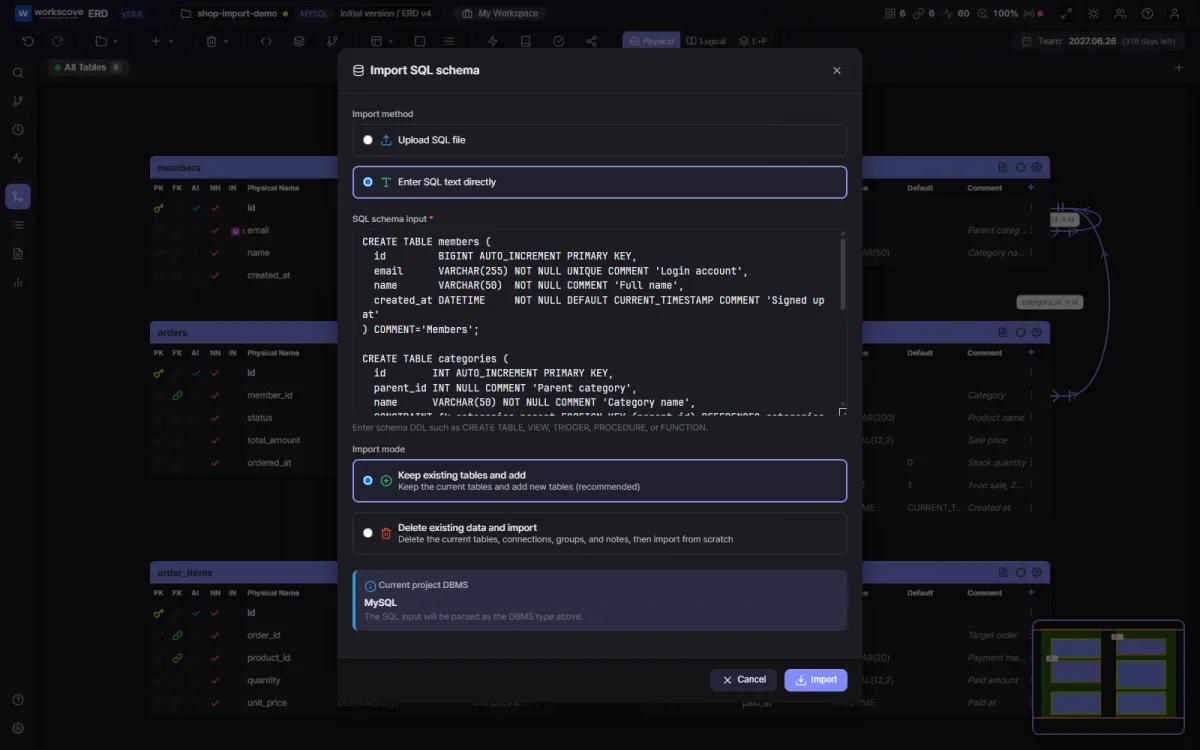
The two import modes are worth knowing: one keeps your current tables and adds the new ones, the other clears the canvas and imports from scratch. For a first import they lead to the same place.
Click Import and all six tables land on the canvas with their relationship lines connected. If the layout looks scattered, auto-arrange offers five algorithms (Grid, Force-directed, Hierarchical, Circular, Orthogonal). For a business schema with FK direction, Hierarchical usually reads best — referenced tables sit above, referencing tables below, like a staircase.
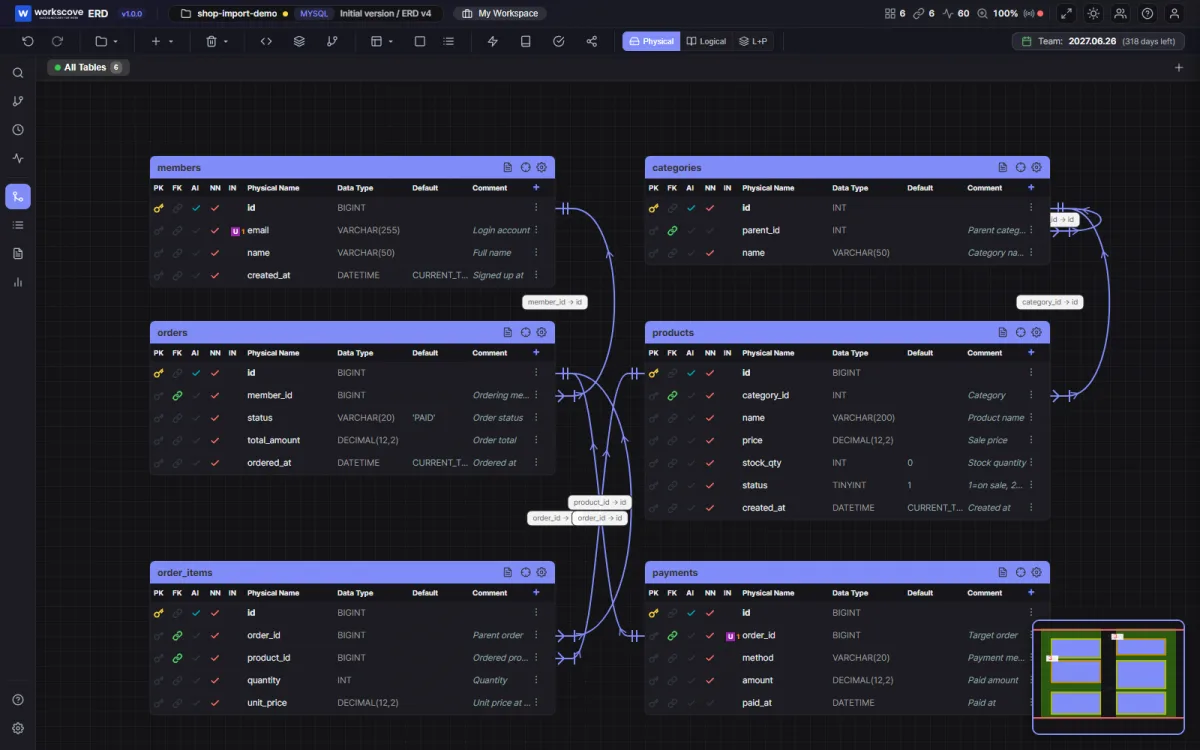
Nothing here was drawn by hand. Columns, data types, FK lines, comments — all of it came from the DDL. The time it actually takes is mostly the time it takes to export the file. How to read the crow's foot symbols on those relationship lines is covered separately in the ERD notation guide.
There's a bonus: the COMMENTs from the DDL arrive as column descriptions, so you can flip between the Physical view (physical names) and the Logical view (descriptions). Developers read member_id, stakeholders read "Ordering member." If your team has been keeping comments in the production DB, this is where that effort pays off.
One thing to get right: the DBMS type
Only one real pitfall: the project's DBMS type must match the DDL you're importing.
The same CREATE TABLE concept is written differently across systems. A few representative differences we confirmed while building four separate parsers:
- Column comments live in different places. MySQL puts
COMMENT '...'inside the column definition; PostgreSQL emits separateCOMMENT ON COLUMN ...statements after the CREATE TABLE. Feed a pg_dump file to a MySQL-only parser and the tables appear — but every comment silently vanishes. - Type systems differ. MySQL's
AUTO_INCREMENTbecomesbigserialor an IDENTITY clause in PostgreSQL; Oracle dumps arrive withNUMBER(10,0)-style types plus storage clauses like TABLESPACE mixed in. - Dumps carry non-schema noise. Real mysqldump files include
SETstatements and lock directives; pg_dump adds ownership and privilege statements. A parser that can't skip these gracefully fails on line one.
So whether a tool reads your DBMS's dump as-is matters more than it first seems. WorksCove ERD parses MySQL/MariaDB, PostgreSQL, Oracle and SQL Server DDL each by its own grammar, and exports to the same four. It can also convert between them — import MySQL, export PostgreSQL — with data types mapped to match.
Skip the file entirely: connect to the DB
You can drop the file step too. Reverse engineering (connecting to the database and reading the schema over the wire) means entering credentials, picking tables, done. WorksCove ERD supports all four DBMS this way, including connections through an SSH tunnel for databases closed to outside access.
This pays off when you track a schema that keeps changing: instead of exporting and moving a dump every time, reconnect and re-import.
If entering production credentials into an external tool doesn't sit well with you, don't force it. Use a dedicated account with only the metadata permissions required, or stick with the paste-a-file approach. In either case, compare the imported table, column, and foreign-key counts with the source.
What comes after the diagram
Think of the moment you inherit a legacy database: getting the diagram is the start of understanding, not the end. Once the ERD exists, the same data keeps working for you.
Pull a table specification. The schema is already in the tool, so a column definition table is one tab away — no retyping a spec document for reviews or handovers. The format and process are covered in How to Write a Table Specification.
Run design validation. Missing PKs, circular references, missing FK indexes — all checkable automatically. On long-lived databases it's genuinely useful to see every "wait, why is it like this?" spot collected into one list. We put an AI-designed schema through the same validation in Drawing ERDs with AI.
Share with the team. A read-only share link lets colleagues without DB access see the structure. The "can you re-export the latest diagram?" request disappears, along with the re-exporting.
Keep it current. When the schema changes, re-import the new DDL or reconnect to the database. Keep versions and you can compare how the structure moved between releases.
The working sequence is DDL export, import and layout. After import, compare the table, column and foreign-key counts with the source database.
FAQ
Do I need to export the data too?
No. An ERD only needs the table structure. mysqldump's --no-data flag exports CREATE TABLE statements without row data. The schema still exposes table names, column names, and constraints, so the file must still be handled as internal information.
Can I connect directly to the database instead of exporting a DDL file?
Yes, if the tool supports reverse engineering. WorksCove ERD connects directly to MySQL/MariaDB, PostgreSQL, Oracle and SQL Server and reads the schema over the connection. If you prefer not to enter production credentials, export DDL instead, then verify the imported table, column, and foreign-key counts against the source.
My schema has a lot of tables: will they all fit?
Check the free limits of whatever tool you use. The WorksCove ERD free plan covers 40 tables per project, which fits most early-stage services. If your schema is bigger, importing just the DDL of one core domain at a time is a practical way to work.
What if I only have a diagram image and no DDL?
There's no standard way to recover a schema from a picture automatically. The practical shortcut is to show the image to an AI and ask it to write the DDL, then paste the result — from there the flow in this article applies as is.
Can I create an ERD from a CSV file?
An ordinary data CSV does not contain enough information about primary keys, foreign keys, or data types to produce an accurate ERD directly. If the CSV is a schema inventory with table, column, type, PK, and FK fields, convert it to CREATE TABLE DDL first and then import it using this workflow.